Linux Container Essentials
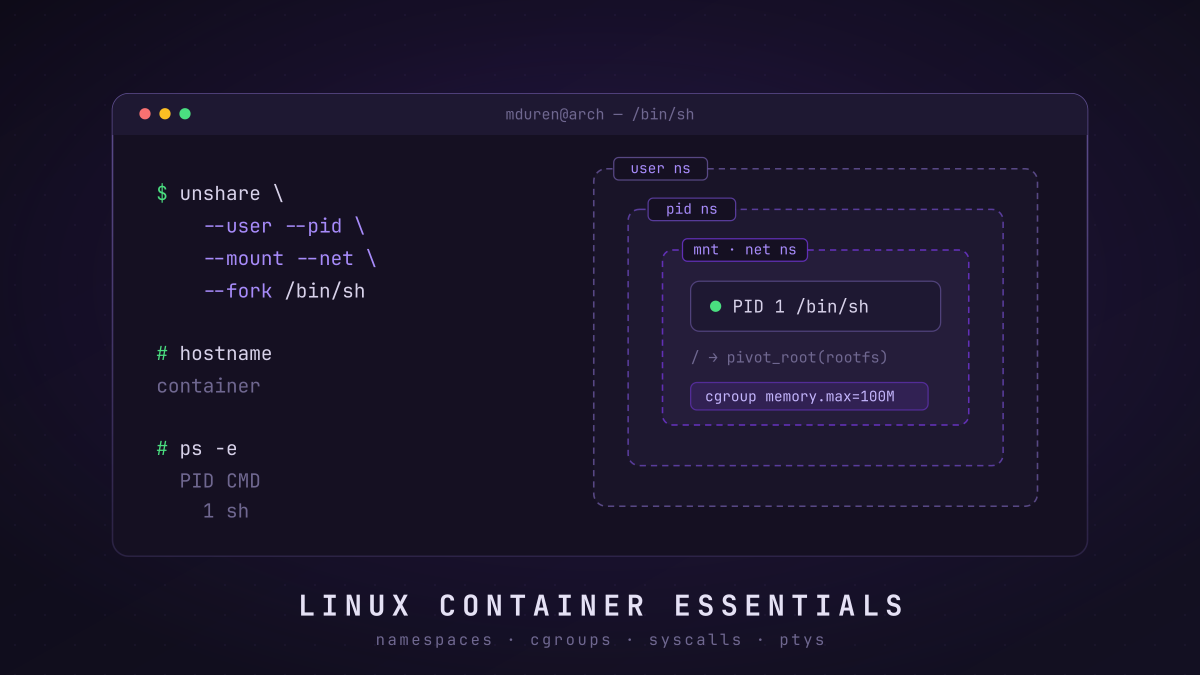
WARNING: this article is WIP
In this article we’ll go into the Linux OS essentials necessary to understand what containers are and how they work.
Keep in mind the phrase “Everything is a file”, this will help in understanding each piece of this article.
User IDs & Groups
If you are already familiar with how Linux users and groups work you can skip this.
This maybe seems like an odd one to start with, but there’s a reason docker groups exist.
We can find information about a user on a Linux system by reading the contents of /etc/passwd
or a group by reading /etc/group.
cat /etc/passwd
mduren:x:1000:1000::/home/mduren:/usr/bin/zsh
That colon-separated line breaks down as:
| Field | Value | Meaning |
|---|---|---|
| Login name | mduren |
the account’s username |
| Password | x |
placeholder; the real hash lives in /etc/shadow |
| UID | 1000 |
user ID |
| GID | 1000 |
primary group ID (one of many groups I can belong to) |
| GECOS | (empty) | comment/notes field — I don’t have any |
| Home | /home/mduren |
home directory |
| Shell | /usr/bin/zsh |
login shell |
A user has a primary group, but can belong to many groups. In order to see your groups
you belong in you can search cat /etc/group | grep -i $USER
An example of needing to belong to a group is being able to call docker without sudo, because as we’ll see throughout this article, the docker daemon runs as root, so after installation on linux we’ll typically want to add ourselves to the docker group.
# add yourself to the docker group
sudo usermod -aG docker $USER
cat /etc/group | grep -i docker
> docker:x:961:mduren
Entries in /etc/group follow name:password:GID:members:
| Field | Value | Meaning |
|---|---|---|
| Group name | docker |
the group’s name |
| Password | x |
group password placeholder (rarely used; lives in /etc/gshadow) |
| GID | 961 |
group ID |
| Members | mduren |
users belonging to the group |
Why is this important for containers? Containers can either be rootfull or rootless.
Rootfull means the containers process is running as the root user (UID: 0, GID: 0),
we’ll dive into this more later on.
Understanding namespaces
One of the quickest introductions (if you’re on a linux system) to namespaces is to simply run man namespaces.
A namespace wraps a global system resource in an abstraction that makes it appear to the processes within the namespace that they have their own isolated instance of the global resource.
A global resource — that’s vague. Let’s take a look at what resources there are:
| Namespace | Flag | Page | Isolates |
|---|---|---|---|
| Cgroup | CLONE_NEWCGROUP |
cgroup_namespaces(7) |
Cgroup root directory |
| IPC | CLONE_NEWIPC |
ipc_namespaces(7) |
System V IPC, POSIX message queues |
| Network | CLONE_NEWNET |
network_namespaces(7) |
Network devices, stacks, ports, etc. |
| Mount | CLONE_NEWNS |
mount_namespaces(7) |
Mount points |
| PID | CLONE_NEWPID |
pid_namespaces(7) |
Process IDs |
| Time | CLONE_NEWTIME |
time_namespaces(7) |
Boot and monotonic clocks |
| User | CLONE_NEWUSER |
user_namespaces(7) |
User and group IDs |
| UTS | CLONE_NEWUTS |
uts_namespaces(7) |
Hostname and NIS domain name |
Containers are supposed to be a black box, a somewhat seemingly virtualized environment like you’re on a different computer. We do that by isolating what the process can see and its identity:
UTS— allows us to change the hostname for the process in the container.User— creating a new user namespace allows us to set the internal application process as root but externally we can set the user ID to be a non root user. This is where the user ID information comes in from the previous section. The container process has to be root in order to call system calls (which we’ll get to) that change its environment. But we don’t want a container process to be running as root because if the users code ever broke out of the container it would have root access to the host machine.Cgroup— this one is critical, we want to be able to set computer resources specific to the container.Network— gives the container its own network stack: interfaces, routing tables, and ports. Two containers can each bind port 80 without conflicting.IPC— isolates System V IPC and POSIX message queues so a container can’t read or interfere with shared memory and queues owned by the host or other containers.Mount— finding mounted filesystems:man findmnt. If we don’t isolate the existing mounts you could see the hosts mounts fromcat /proc/<PID>/mountsbecause the child process (container) inherited access to all the preexisting mounts. When binding a host directory inside a containers root, with something likedocker run -v <host>:<container> ...we are still using themountnamespace but binding the host dir into a mount in the container. Other containers cannot see into this however since they each have their ownmountnamespace.PID— these are crucial, without them containers could see all running processes on the host machine. Talk about a security issue.Time— lets the container have its own boot and monotonic clock offsets. Rarely user-facing, but it exists.
Seeing the namespaces on your system: lsns, here I’m running this in a vm
as root.
[root@archlinux ~]# lsns
        NS TYPE   NPROCS   PID USER             COMMAND
4026531832 mnt       101     1 root             /usr/lib/systemd/systemd --switched-root --system --deserialize=54
4026531833 net       119     1 root             /usr/lib/systemd/systemd --switched-root --system --deserialize=54
4026531834 time      119     1 root             /usr/lib/systemd/systemd --switched-root --system --deserialize=54
4026531835 cgroup    119     1 root             /usr/lib/systemd/systemd --switched-root --system --deserialize=54
4026531836 pid       119     1 root             /usr/lib/systemd/systemd --switched-root --system --deserialize=54
4026531837 user      119     1 root             /usr/lib/systemd/systemd --switched-root --system --deserialize=54
4026531838 uts       106     1 root             /usr/lib/systemd/systemd --switched-root --system --deserialize=54
4026531839 ipc       119     1 root             /usr/lib/systemd/systemd --switched-root --system --deserialize=54
4026532401 mnt         4   227 root             ├─/usr/lib/systemd/systemd-userdbd
4026532402 mnt         6   231 root             ├─/usr/lib/systemd/systemd-nsresourced
4026532628 uts         4   227 root             ├─/usr/lib/systemd/systemd-userdbd
4026532629 uts         6   231 root             ├─/usr/lib/systemd/systemd-nsresourced
Processes and chroot
You’ve probably at some point needed to find or terminate a process on your machine, maybe its a container or a dev server
that won’t stop running and ran the classic ps command. ps outputs information about different processes running on your machine,
if you’re on mac or linux (we won’t talk about Windows). Where is that command reading from? Turns out it reads from /proc/, a pseudo
filesystem on your computer to read information from the kernel, and /proc/<proc-id>/exe is a symbolic link to the actual program binary.
Isolating containers means importantly isolating the processes and the rest of the file system.
Using the chroot command or the pivot_root syscall (man 2 pivot_root) allows us to change the root of the file system for a process, effectively isolating
both /proc and processes to a new view, and with the addition of our before mentioned namespace CLONE_NEWPID we have an isolated
set of processes the container can see.
Well, almost.
Essential syscalls
What is a syscall? There are two levels of privileges when it comes to accessing hardware resources:
- User space — where most of our programs run, browsers, email etc.
- Kernel space — what actually has access to system resources like files, memory, network requests, etc.
The separation above is leaving a lot out but syscalls are what we use when we want to access privileged resources from our programs. Our programs running in the user space use syscalls to request the kernel take an action on our behalf.
Some syscalls that matter for containers:
read— read from an open fd into a user-space buffer.fds in linux are essentially pointers to different types of resources, they’re an abstraction over things that could be files, terminals, pipes, network sockets etc.fork— duplicate the calling process. Child gets its own copy of memory, fds, etc. Same code continues running in both, diverging based on fork’s return value (0 in child, child PID in parent).clone— same idea asfork, but with a flags argument that lets you control what’s shared vs. duplicated vs. isolated, including creating new namespaces for the child.fork()is essentiallyclone()called with a default flag set that shares nothing extra — it’s the “no special namespace/sharing options” case.execve— replace the calling process’s memory with a brand new program loaded from disk. Same PID, new code. Doesn’t create a process, just replaces what’s running in the current one.
Cgroups
To see which cgroup a process belongs to, run cat /proc/<pid>/cgroup, then look under /sys/fs/cgroup/…
for files like memory.max, cpu.max, and pids.max.
If we look at cgroup.controllers we can see what is currently available on the machine:
root@vm:/sys/fs/cgroup# cat cgroup.controllers
cpuset cpu io memory hugetlb pids rdma misc
Each of these controllers manages a type of resource that processes might consume.
To enable the controllers they must be written into the cgroup.subtree_control file.
Setting a control for something like memory for example we just have to update the memory.max
file. You might cat memory.max and find that it just says max which means processes that are assigned
this cgroup can use the maximum amount of memory, but we could update it to be echo 100000 > memory.max (100 KB).
Making a new cgroup is easy, just create a folder for example mkdir durendev and ls -la durendev and we’ll
see all the default cgroup files have been added for us, cat cgroup.procs to see the current processes using
the current cgroup (for a new cgroup this will be empty).
RLimits
Every process carries a set of resource limits (rlimits). You can read a running process’s limits from /proc/<pid>/limits:
cat /proc/898951/limits| Limit | Soft Limit | Hard Limit | Units |
|---|---|---|---|
| Max cpu time | unlimited | unlimited | seconds |
| Max file size | unlimited | unlimited | bytes |
| Max data size | unlimited | unlimited | bytes |
| Max stack size | 8388608 | unlimited | bytes |
| Max core file size | 0 | unlimited | bytes |
| Max resident set | unlimited | unlimited | bytes |
| Max processes | 189551 | 189551 | processes |
| Max open files | 1024 | 4096 | files |
| Max locked memory | 8388608 | 8388608 | bytes |
| Max address space | unlimited | unlimited | bytes |
| Max file locks | unlimited | unlimited | locks |
| Max pending signals | 189551 | 189551 | signals |
| Max msgqueue size | 819200 | 819200 | bytes |
| Max nice priority | 0 | 0 | — |
| Max realtime priority | 0 | 0 | — |
| Max realtime timeout | unlimited | unlimited | us |
TODO: setuid & capabilities section
- setuid example (from container security notes, p. 21)
- p. 23 — Adrian Mouat: Why Linux Capabilities Exist and How They Work https://adrianmouat.com/posts/linux-capabilities-why-they-exist-and-how-they-work/
TTY
TTY literally stands for “teletype” — the electromechanical typewriters (like the Teletype Model 33) that were the physical terminals of the 1960s–70s, wired to the computer over a serial line. The hardware is museum material now, but the software abstraction built for it never left.
In Linux, a tty is a kernel object with three layers:
- A device — where bytes physically come from and go to.
- A line discipline — the kernel middle layer that buffers input into lines, handles backspace, echoes keystrokes, and converts Ctrl-C into SIGINT for the foreground process group.
- The character device file (
/dev/tty1,/dev/pts/3) that processes read and write.
The line discipline is the part that makes a tty more than a dumb byte pipe — it’s where job control signals, canonical “cooked” mode vs raw mode, and echo all live.
Today the “device” layer comes in three flavors: real serial ports (/dev/ttyS0, still used for embedded boards and
servers), virtual consoles (/dev/tty1–tty63, the text screens you reach with Ctrl-Alt-F3, where the kernel itself
plays the role of the terminal hardware), and pseudoterminals (/dev/pts/N, where a userspace program — terminal
emulator, sshd, tmux, your container runtime — plays the terminal hardware by holding the master side). Same line
discipline, same job-control semantics in all three; only who’s on the far end changes. There’s also the magic file
/dev/tty, which always means “my controlling terminal, whatever it is.”
PTYs and interactively running containers
How does docker run -it (or runc’s equivalent) actually give you an interactive shell inside a container?
The runtime wires up a pseudoterminal:
createlaunches a monitor — a process that outlives thecreatecommand itself.- The monitor listens on a console socket.
- The container process opens a PTY → gets the master + slave pair, keeps the slave as its stdio, and sends the
master fd to the monitor over the console socket (
SCM_RIGHTS). - The monitor now holds the master and listens on an attach socket; the runtime’s
attachcommand connects there and the monitor relays bytes ↔ master.
One subtlety to file away: after the container process sets the slave as its stdio, it also does setsid() +
TIOCSCTTY to make that slave its controlling terminal — that’s what makes Ctrl-C and job control actually work.
Where to read the primitives:
pty(7),pts(4)— the master/slave modeltermios(3)— the line discipline (echo, canonical mode, signals)openpty(3)/forkpty(3)— the convenience calls that create the pairunix(7)+cmsg(3)—SCM_RIGHTSfd passing (the console-socket mechanism)ioctl_tty(2)—TIOCSCTTY(claim controlling terminal)
TODO: ## Container Images
- layers, OCI image spec, overlayfs
- how the rootfs we chroot/pivot_root into actually gets built
Container Networking
- Bridge mode: Apps running in standalone containers explicitly sets any connection between a container and host port; typically used as the default.
This creates a virtual
ethernetbridge orveththat forwards packets between any other network interfaces attached. - Host mode: removes network isolation to the host.
- Container mode: Reuse the network namespace of another container.
- No networking: Disable support
Appendix/Terminology
- canonical cooked mode vs raw mode — a terminal is either in one of two states: cooked, using a buffered read
separated on
\n, or raw, where every byte is sent to the program without buffering — think a program like vim.